
What Is Website Vulnerability Management?
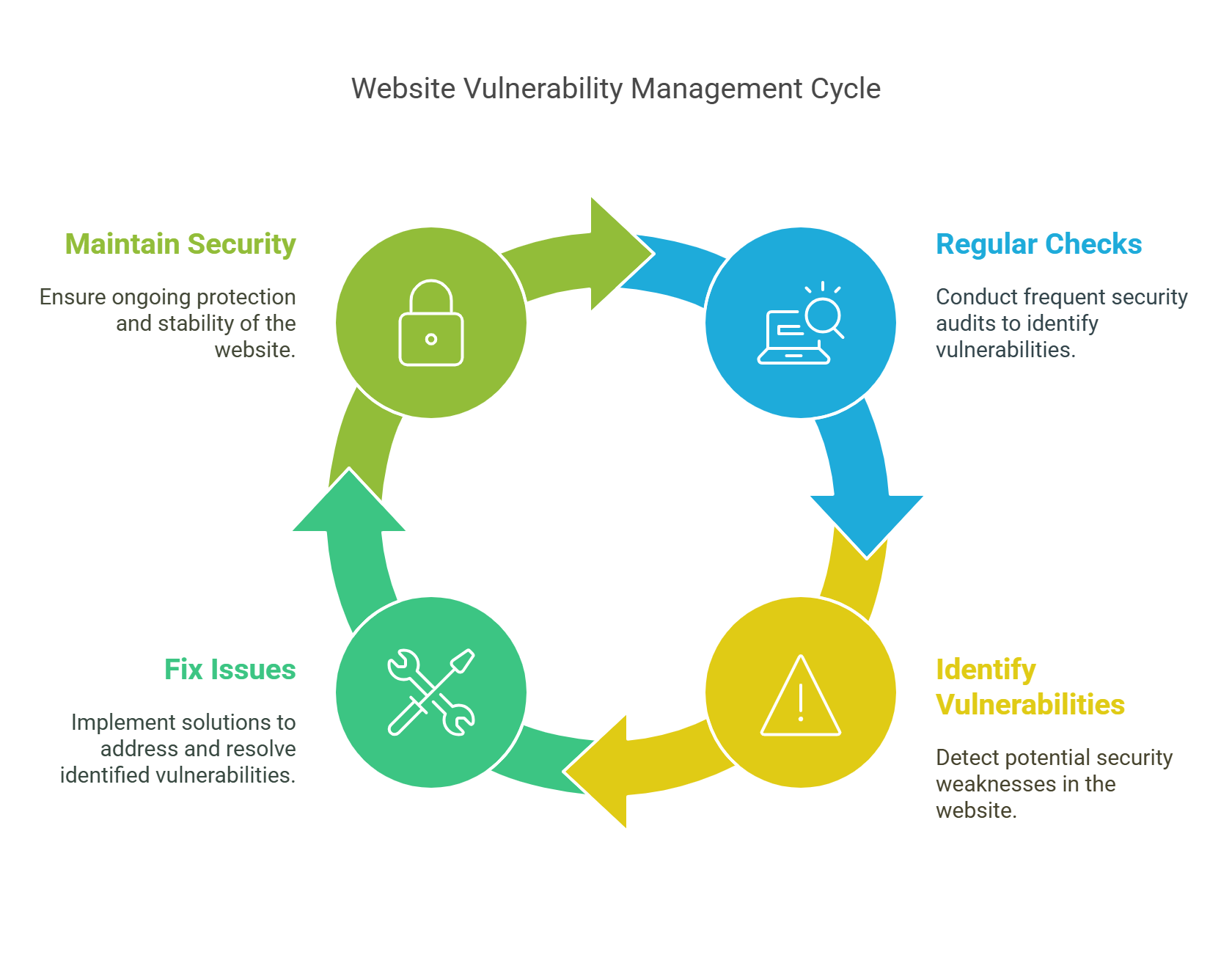
Website Vulnerability Management (WVM) means checking your website often to find and fix security problems. These problems could let hackers in or break your site. WVM helps you stay safe, protect your users, and keep your business running.
Why It Matters
- Hackers look for weak websites all the time.
- A single attack can cost you money, time, and your customers’ trust.
- Google may remove your site if it finds malware.
The Four Main Steps of Website Security
1. Find Weak Spots
Use tools to scan your site for problems:
- OWASP ZAP: Finds weak code.
- Nikto: Checks for outdated software.
You can also ask experts to try hacking your site (this is called a penetration test).
2. Check the Risk
Not all problems are equally bad. You need to decide:
- How easy is it to hack?
- How much damage could it do?
Use CVSS scores to rate problems from 0 (low risk) to 10 (high risk).
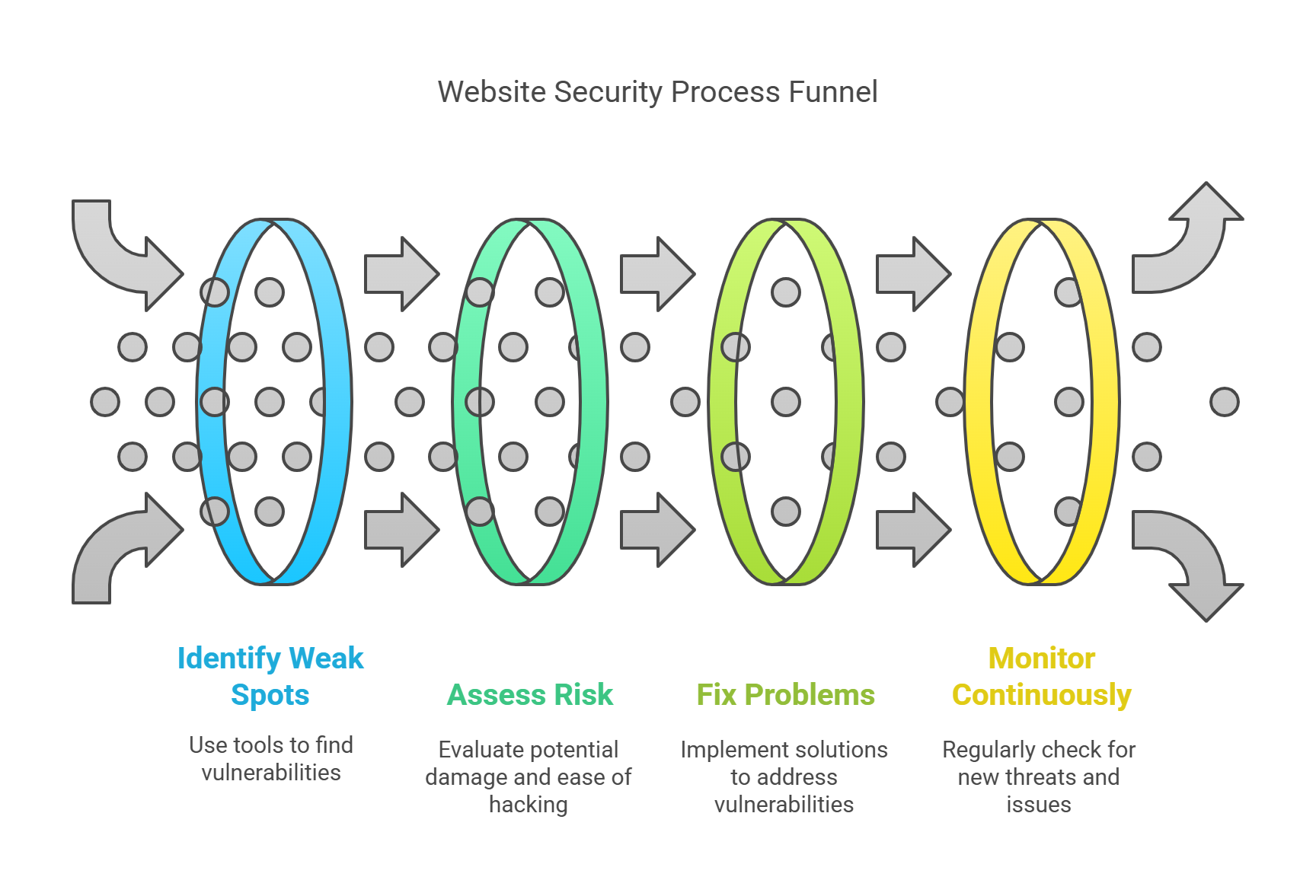
3. Fix the Problems
After you find issues, fix them fast:
- Update software and plugins.
- Clean up your code to block bad inputs.
- Use strong passwords and two-step login.
Always test changes before putting them on your live website.
4. Keep Watching
Check your website regularly. Tools that help include:
- Web Application Firewalls (WAFs)
- Alerts when files change
- SSL certificate checkers
Common Website Problems
| Problem Type | What It Means | Example |
|---|---|---|
| SQL Injection | Hackers add bad code to data fields | Bypassing login forms |
| Cross-Site Scripting | Hackers run scripts on users’ browsers | Pop-ups or page redirects |
| Remote File Inclusion | Uploading harmful files to your site | Installing backdoors |
| Broken Authentication | Weak or stolen login info | Taking over accounts |
| Bad Plugins or Themes | Using old or risky tools | WordPress plugin flaws |
How to Start a Security Program
1. Set Security Rules
Make clear rules about who handles problems and how fast they should act.
2. List Everything
Write down:
- All websites and subdomains
- All software and plugins you use
- Hosting details
3. Scan Often
Run a scan every week or after updates.
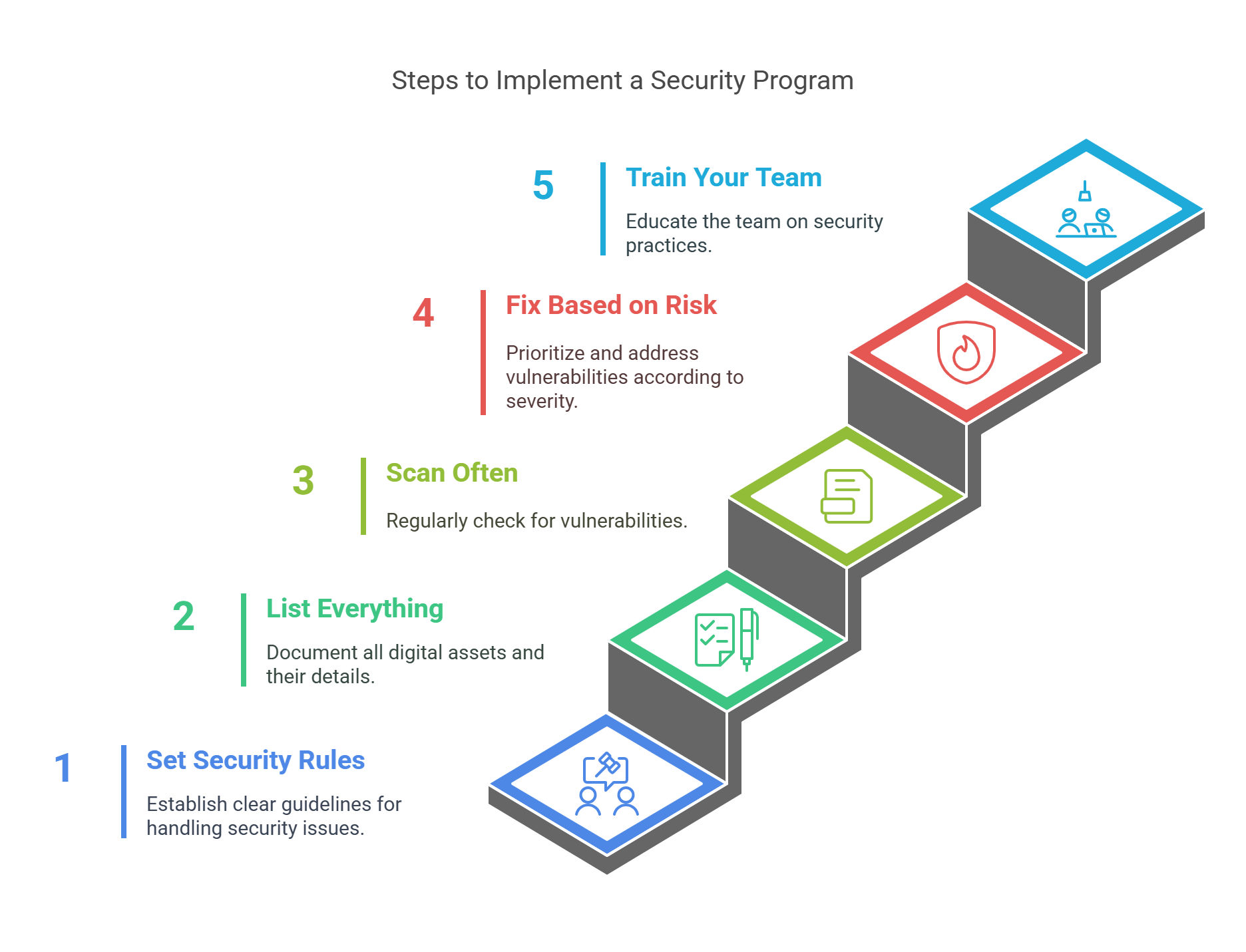
4. Fix Based on Risk
Use these timelines:
- Critical (CVSS 9-10): Fix in 1 day
- High (7-8.9): Fix in 3 days
- Medium (4-6.9): Fix in 7 days
- Low (<4): Fix in 30 days
5. Train Your Team
Teach them:
- How to write safe code
- How to spot fake emails and bad files
Real-Life Examples
Equifax (2017)
- Cause: Didn’t fix a known bug
- Result: 147 million records leaked
British Airways (2018)
- Cause: Bad third-party script
- Result: 500,000 customer records stolen
FAQs
What Are Good Free Tools?
- OWASP ZAP
- Nikto
- WPScan (for WordPress)
- Clair (for Docker)
Can Google Penalize Me?
Yes. Your site may be blacklisted if it’s unsafe.
How Often Should I Scan?
Every week, and after any big update.
How Is This Different from Penetration Testing?
- WVM is regular and automatic.
- Pen Testing is like a practice attack done by humans.
Quick Cost Example
You make $1,000 per day. A hack shuts you down for 3 days and cuts future sales by 30%.
- Loss from downtime: 3 × $1,000 = $3,000
- Trust loss: 30% of $30,000 = $9,000
- Total loss: $12,000
Final Thoughts
Website security is not optional. It protects your data, your users, and your reputation. Set up a simple plan, scan often, and fix problems fast.
What You Can Do Today
✅ Try free tools like OWASP ZAP or Nikto to check your site.
✅ Make a habit of weekly scans.
✅ Teach your team safe practices.
Stay safe, stay smart.